Pickpook: The Unseen Edu & Travels: How To

Responsive Ad Slot

Showing posts with label How To. Show all posts

iPhone Makes It Easy To Find Your Car In The Parking Lot, Here's How To Pair Your iPhone With Your Car

No comments

Sunday, 12 March 2023

The Apple Map app has a built-in feature that helps you to quickly locate your vehicle where it is parked.

Specifically when you disconnect your iPhone from your car's CarPlay or Bluetooth - a marker will be included in Apple Maps.

Before that, however, there are some things you need to do to be able to track and find your car wherever it is parked.

How To Find Your Car Using Your iPhone:

Step 1: Pair iPhone with your car:

First, your car needs to have Bluetooth or the CarPlay app, then you have to pair your iPhone with it.

Step 2: Enable "Location Services":

In order for Apple Maps to remember where you last parked your car, you need to make sure that Location Services is turned on in Settings on your iPhone.

Go to Settings => Privacy & Security and make sure Location Services is turned on.

Step 3: Turn on "Significant Locations":

Significant Locations is usually enabled by default. However, you can check on iPhone by opening Settings => Privacy & Security => Location Services => System Services => Significant Locations.

Step 4: Turn on "Show Parked Location":

Show Parked Location in Apple Maps can be turned on by opening Settings => Maps and activating Show Parked Location.

Step 5: Use Apple Maps to find a car:

To make sure you'll find your car, you need to make sure your iPhone is connected to your vehicle while you're driving, and when you park, you'll receive a notification from Apple telling you where the car is parked and when you open Apple Maps., you can see an icon to see where your vehicle is.

You should also note that some problems can still occur that cause the parking location search to be inaccurate. Specifically if you frequently park your car in the same spot - Apple Maps won't re-mark that location.

In addition, the above feature may not work well in rural areas, multi-storey car parks.

How To Enable Split Screen Feature In Microsoft Edge Browser To Make It Easier To Work

No comments

Thursday, 2 March 2023

Split Screen will let you use two tabs side by side in a single Microsoft Edge window, and it's part of the upcoming "Phoenix" Edge project that aims to refresh Microsoft's browser. After a short test period and not many changes, Split Screen is preparing to launch to the public.

You can enable the Split Screen feature in Microsoft Edge version 110.0.1587.46 or later. Although this feature is available to use, it still requires you to enable it in flags.

According to Microsoft's roadmap, the Split Screen feature will be available to all Edge users in April this year, so the company still has time to perfect the feature and fix bugs.

How to enable Split Screen in Microsoft Edge

Step 1: Update Edge browser to the latest version by pasting

edge://settings/help

in the address bar.

Step 2: Paste the

edge://flags

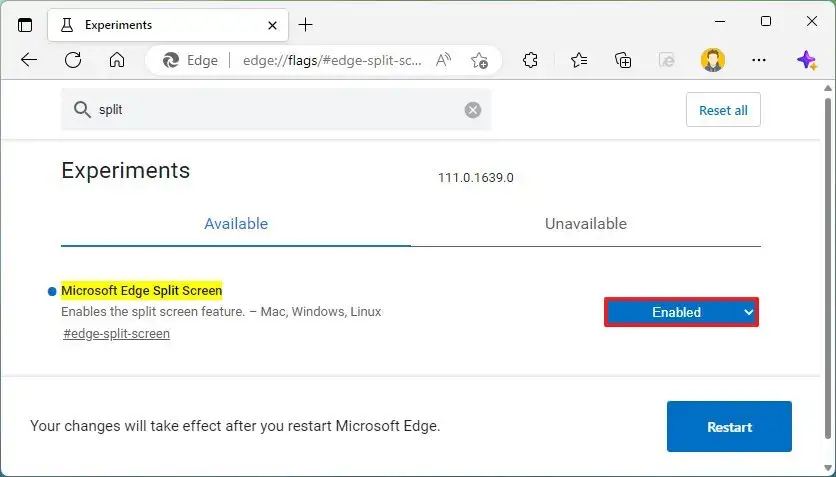
link into the address bar and search for Microsoft Edge Split Screen.

Step 3: Turn on Microsoft Edge Split Screen and restart the browser.

Step 4: Now you see the Split Screen feature on the toolbar and select the tabs you want to keep side by side.

How To Enable Dynamic Island On All iPhone Models Without Jailbreak

No comments

Monday, 9 January 2023

Dynamic Island is an "exclusive" feature for Apple's iPhone 14 Pro and 14 Pro Max series which provides user interaction with floating apps or notifications.

However, if you own an old device but still want to experience how this feature works, you can refer to how to do it in this article.

The Dynamic Island "mod" method was discovered by a GitHub user named Huy Nguyen, through editing the original model into the code of the iPhone 14 Pro.

The process requires an iPhone running iOS versions between 16.0 and 16.1.2 (including iPadOS), and installed with the Santader advanced file management application.

How To Enable Smart Island On Any iPhone Model Without Jailbreak:

  1. Download and Install Santander app on iPhone/iPad using Sideloadly or AltStore (download link below)
  2. Open the Santander application => Click the 3 dots in the upper right corner of the screen => Select Go to => Click the Other button and follow the link:/var/containers/Shared/SystemGroup/systemgroup.com.apple.mobilegestaltcache/Library/Caches/com.apple.MobileGestalt.plist
  3. When a dialog box opens, select CacheExtra => Click Search => Select Opei => Find ArtworkDeviceSubType and change it to 2556 (iPhone 14 Pro Code). Note: Need to take a screenshot before redeeming the code to change back to the old value if you don't want to experience Dynamic Island anymore.
  4. Wait until the application changes the code, press the 3 dots button and then select Respring device.
  5. Wait for the respring to complete and enjoy the results.


[Video] Watch How To Enable Dynamic Island On All iPhone Models:

Don't Miss
© all rights reserved
made with by Pickpook - The Unseen Edu and Travels